Log into the Bitdefender portal with your company username and password - https://cloud.gravityzone.bitdefender.com/
Once logged in, click on the Email Security link on the left hand side:
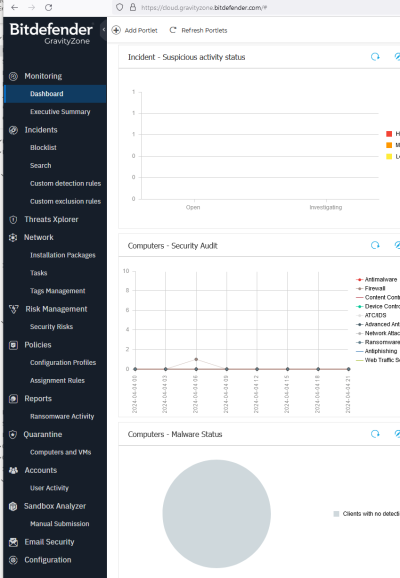
Once in the portal, and if this is the first time you have accessed this form, you will need to click on the button to Create your account. Give it a moment and when successful, it will show you that it was created successfully:
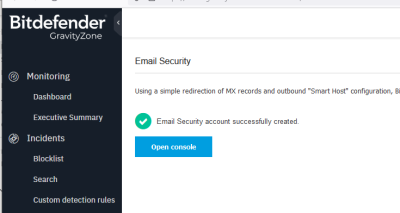
Click on the Open console button to access the Email Security settings for your company - this will open in a separate tab.
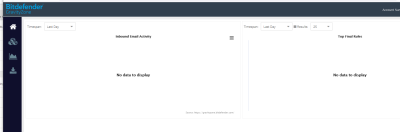
Once in the Email Security Portal, click on the Products icon  on the left hand side.
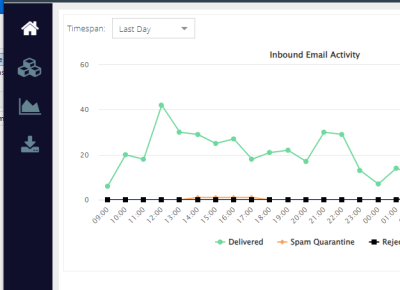
Click on the link for Global Quarantine.
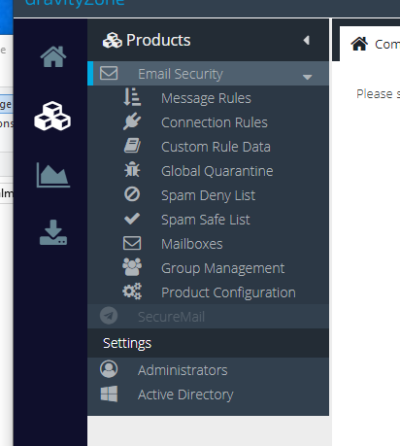
Once the form loads, you can adjust the Timespan from the top drop down menu as well as any of the other filters on the page.
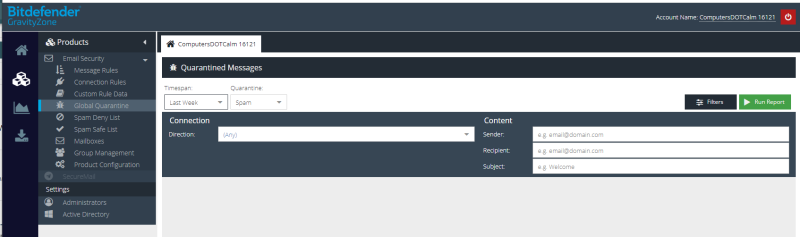
Click the Run Report button when ready to see a list of emails stuck in quarantine for the time period you selected.
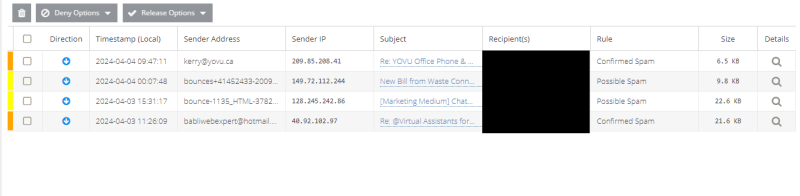
You can achieve multiple objectives with this report.
You will see the list of suspected emails, who they were from, who they were sent to and why they have been quarantined.
If you click on the Subject line for the email you want to investigate, this will open a representation of that email in a safe sandbox form to protect you from anything in that email that might be suspicious. After looking at the email, you can determine if in fact this is a legitimate email or is in fact Spam or possibly malware.
If you click on the Magnifying glass at the right, it will show you all of the details for the email as well as any attachments or links in the email. Be very careful about clicking on any of the links as this will remove you from the safe sandbox environment and take you directly to that link.
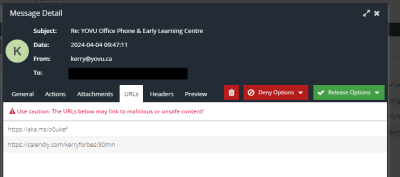
Once you determine if this is a valid email or not, after selecting the email, either by clicking on the magnifying glass to the right, or placing a checkbox at the left for that email, you can click on the Release Options dropdown if you want to release this email or the Deny Options dropdown if you want to deny this email.
Your options for the Release Options are:
- Release - will release this email to the user's inbox without adjusting any spam rules
- Safe Sender - will release this email to the user's inbox AND will add the sending email ACCOUNT (i.e. rdakin@computersdotcalm.com) to the Spam Safe list.
- Safe Domain - will release this email to the user's inbox AND will add the sending email DOMAIN (i.e. computersdotcalm.com) to the Spam Safe list.
- IP address - will release this email to the user's inbox AND will add the IP Address of the sending email server to the Spam Safe list.
Your options for the Deny Options are:
- Deny Sender - this will add the sending email ACCOUNT to the Spam Deny list.
- Dendy Domain - this will add the sending email DOMAIN to the Spam Deny list. Be very careful with this option as you may inadvertently block say all Gmail account.
- IP address - this will add the IP Address of the sending email server to the Spam Deny list. Once again, be very careful with this option.
Once you are done, if there are any emails left in the report, you can delete all of them or individual ones by placing a check mark to the left of them and then clicking the Delete icon at the top of the column to delete those emails.
When you are done, you can click the Red close icon in the top right hand corner.